
Keeping clients' computers safe and profitable for over 30 years
Home Forms About Current Newsletter subscribe

Working with ESET Smart Security
|
 |
Most of my clients are using ESET's Smart Security to prevent malware. But there is a hard and fast rule: the bad guys only need to win once. You must win every time. What this means is that ESET can do an outstanding job and protect you from 50 attacks. But you'll get infected if it fails just once. If you let enough miscreants attack you, then eventually, one of them will get through.
You must work with ESET to limit the attacks. You are the first layer of security.
So, how do the two of you, you and ESET, work together to protect your computer? As ESET scans your computer and protects you, it records and explains what it is doing in log files. Some of these logs are complex and difficult to understand, but some are pretty simple. You need to review the simple logs to see what ESET is doing and what you've been doing to expose yourself to attacks. If you go to a site that has advertising that tries to infect you, and ESET keeps protecting you, sooner or later, one of those attacks will get through. You need to be aware you are going somewhere that isn't honest and stop going there. You do this by checking on what ESET is doing and how it is protecting you.
You must limit the number of attacks ESET must stop.
But how do we check it and see what it's been doing? I recommend the following 4-minute check and created a PDF form here for you to use.
Is it alive and well?
This is the basic question.
- First, just check your bottom task bar and look for the Green 'e' on a white background.
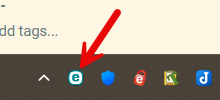
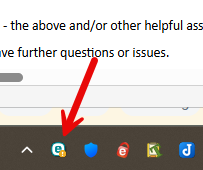
If it looks ok, it probably is. It should look like the image above. However, if it has an exclamation mark or question mark in the icon, then open it up and figure out what it is concerned about. The exclamation mark is its attempt to ask for help.
You need to open it if it looks like this. Find out what's bothering it.
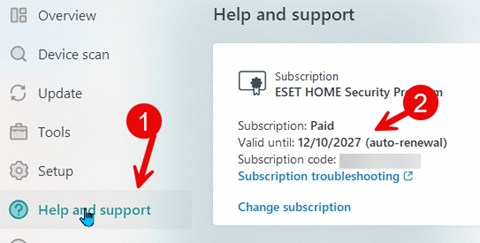
- Next, you should check your expiration date and know whether you have lots of time and whether it will auto-renew. You do this by clicking on "Help and support” in the left pane and checking your subscription status.
- Now you should see if it is updating regularly. This includes 2 things:
- Is it successfully checking for updates?
- Is it finding and successfully installing updates?
You check this by using the left pane menu and clicking on update
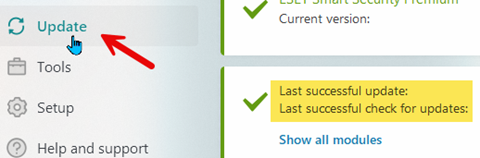
Things can go wrong, but if it hasn't updated in a few days, something is wrong. Contact me or ESET directly.
Checking critical logs
I think 3 logs are important to check and mostly understandable by end users. From the left panel, choose Tools, then Log files.
- Detections
The first log is Detections. This shows any files or recent actions ESET felt were possibly malware. These could be files or perhaps an Internet action ESET prevented. The information is in 10 columns, and if you want to read it, I suggest copying and pasting it somewhere, but the columns can be resized. These show when ESET detected something it felt was possibly malware.
- Date and time: When did it happen?
- Scanner: ESET has many different scanners. Which one found this?
- Object type: like a file.
- Object: This is the exact file and location or website.
- Detection. This is the category of the object, like Suspicious, or known virus, or PUP (Potentially unwanted program).
- Action. What ESET did. It might quarantine it or delete it, or if it is a website, it could terminate the connection.
- User. Who's running your machine? Don't worry about this.
- Information: This is its attempt to describe what happened
- Hash: A fingerprint of the object—don't worry about this.
- When it was first seen on this computer.
This list might not always exist. If nothing is in this list, there have not been any recent detections. You are a safe browser.
What's important here?
What you should look for. What object was flagged? Was it suspicious, or was it a known virus? The action. What did ESET do? If it's cleaned by deleting, then the object is gone. If it could not delete it or quarantine it, then you might have more problems and should call me.
The next step is to check your scanner.
- Device scan
I set up my clients with weekly scans. I want an in-depth scan done every week. So, if you notice a detection, what happened when ESET did its normal weekly scan? Here you should check.
- Is it doing a scan each week or nearly every week?
- Did it detect any possible malware?
- Did it clean anything it found?
It is especially important that the scanner finds no problems it hasn't cleaned, especially if it had detected a problem in real-time.
- Folder Guard
The last log I suggest for my clients to check is Folder Guard. Folder Guard is the system we put in place to protect against ransomware. It only allows white-listed files access to certain folders. These normally include your documents, backups, and desktop. If a file isn't on the allow list, ESET pops up a message asking a couple of questions.
- Should I allow or deny access to this folder for this program?
- Should this be a one-time pass, or should I create a rule and add this program to my allowed programs?
There are 2 common reasons perfectly good programs will get blocked:
- If you just installed a new program that doesn't have a large customer base, ESET might not know about it, so it may stop it.
- If you just updated a program so its fingerprint changed, then ESET will stop it. It won't trust the name alone.
In both of these cases, make a rule to allow the program to write to the appropriate folders. But, if you don't recognize the program trying to write to your backup drive or documents folder, then deny access and call me.
Summary
So, that's it. Just two things are necessary to work with ESET. Just 4 minutes a month.
- Is it alive and working?
- Check 3 log files to see what it is doing and whether you need to change what you are doing.
Use this form to do the 4-minute monthly check.

This article is licensed under a Creative Commons Attribution-NoDerivs 3.0 Unported License.