
Keeping clients' computers safe and profitable for over 30 years
Home Forms About Current Newsletter subscribe
Using KeePass and Bitwarden's Auto-Type Functions
|
Preview: Speed up logins with autotype hotkeys in Bitwarden and KeePass. Learn the default shortcuts and how to customize KeePass sequences for tricky multi-page login forms. |
Most of my clients use either KeePass or Bitwarden for their password manager. Both of them have convenient autotype functions. By autotype, I mean there is a hotkey that will fill in the username and password for you. Here's how to use each one.
Bitwarden
Bitwarden's autotype function is intelligent. By that I mean it examines the current tab and looks for the username and password fields. So, this only works with the browser extension, not the desktop app. Then it fills them in appropriately. It seems to figure it out more than 90% of the time. If you are using Bitwarden as your authentication app, it will also fill in the authentication code for you. If the site puts the username on one page and then the password is requested, just press the hotkey CTRL-Shift-L by default, and then you may need to press next, maybe not. Then perhaps CTRL-Shift-L again. But I've seen it figure the whole thing out and fill in the username, press Next for you, and then fill in the password. It doesn't press the final submit button.
Bitwarden also allows you to log in by clicking the icon that will automatically appear in the username and password fields. It's just that Ctrl-Shift-L is a little easier.
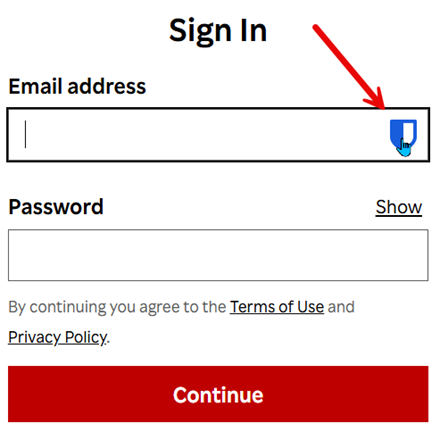
So,
- Find the Bitwarden entry. I suggest launching the site from there.
- Navigate to the login page, then press Ctrl-Shift-L, and it'll fill the information in for you.
- If it separates the username on one page and the password on the next, just press Ctrl-Shift-L again.
This works on most sites. For me, the only one I've found it not working on is Charles Schwab.
KeePass
Unlike Bitwarden's browser extension, KeePass does not integrate with the browser intentionally. When it tries to be intelligent, I think it creates more problems than it solves. It is not a good option for most of my clients. However, it has a useful AutoType function that does not require intelligent operation.
Step 1.
Make sure you have a Selected Entry autotype setup.
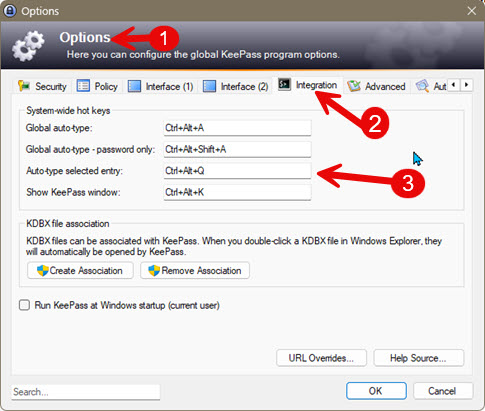
The global auto-types try to search KeePass and find a match and then fill in open spaces. I haven't had good luck with these. However, the Auto-type selected entry worked well for me. In the above image, you can see that I've set Ctrl-Alt-Q as the hotkey.
Using the Hotkey
I normally launch the site from KeePass, but you have to find the correct KeePass entry. Then click on the Username field. Then press Ctrl-Alt-Q . KeePass will type in the username, press TAB, type in the password, and press ENTER.
Tailoring the sequence
This works great for many sites, but occasionally it needs to be changed. Let's say the site presents asks for your username, then you press enter, and another page appears for the password. The standard procedure will fail. But you can tailor each auto-type to a particular site. Here's how.
Start by choosing the Auto-Type tab. You'll notice the default sequence of {USERNAME}{Tab}PASSWORD}{ENTER}
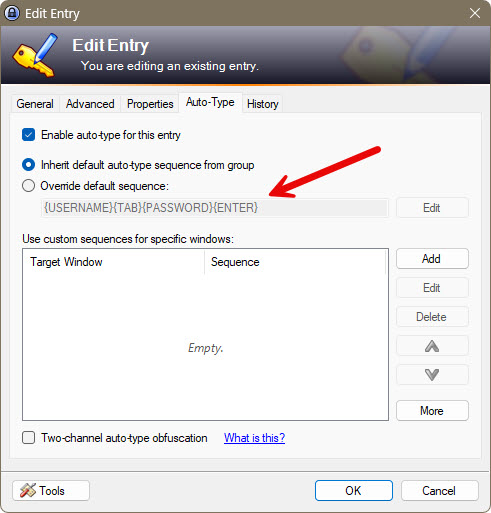
Just choose Override default sequence and then edit. The panel below will become populated with many commands for you to select. Just move your cursor to the appropriate place and click on the command.
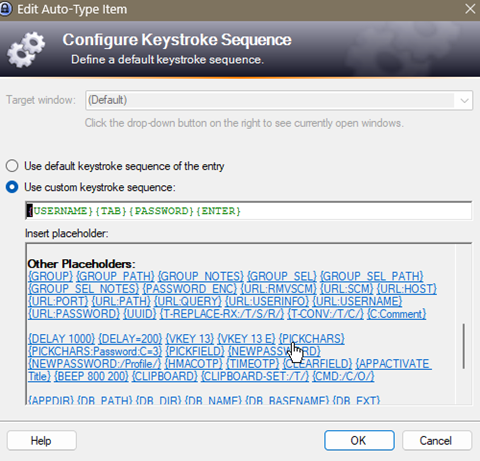
Here's how the 2-page Username and password entry was handled.
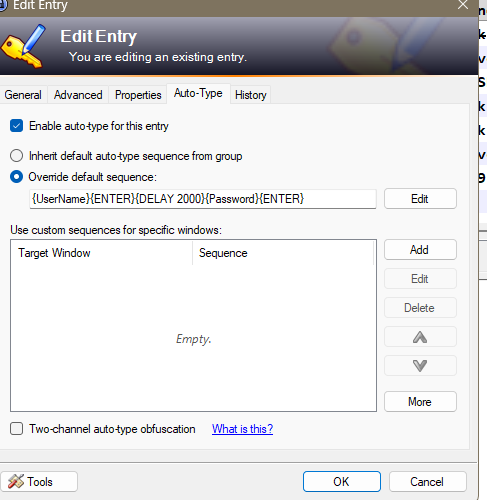
I just moved the cursor to after the {UserName} deleted the {TAB} command. Then clicked the {ENTER} command. The delays are in milliseconds, so I chose the {DELAY 1000} command and changed it to 2000. So, when I click on the username field and press CTRL-ALT-Q it types the username, then presses enter and waits 2 seconds for the screen to change, then types the password and presses enter.
These can become really complex sometimes.

This article is licensed under a Creative Commons Attribution-NoDerivs 3.0 Unported License.