
Keeping clients' computers safe and profitable for over 30 years
Home Forms About Current Newsletter subscribe
Search All Articles
Browse by Category

Auto Reboot Your Router
Preview:
Why you should set your router to automatically reboot and how to do it.
Viruses and malware do get inside your router. This is why I recommend turning on auto update. Normally, these will remain in memory only, so a restart will clean them out. Routers also accumulate junk, so just like your computer, they benefit from periodic reboots.
- On the left menu panel toward the bottom select Administration
- Choose the System tab.
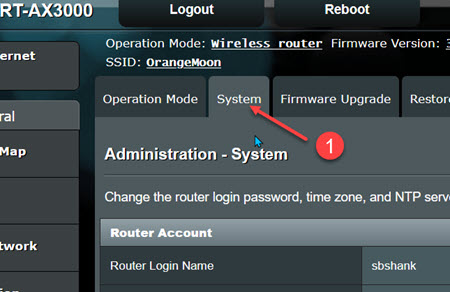
Then make sure you set the time and turn on Enable reboot.
- Be sure you set the time zone properly.
- Check the adjustments for Daylight Saving Time
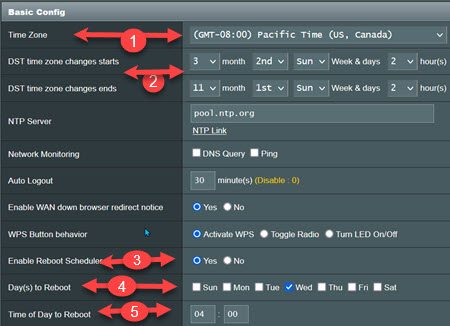
3. Turn on the Reboot scheduler
4. Set the day of the week5. Set the time
Set the time when you aren't in the middle of backing up the computer or making an image. I have local backups running at 2 a.m., images at 3 a.m., router reboot Wednesdays at 4 a.m. and Firmware upgrades at 6 a.m.
Date: September 2023

This article is licensed under a Creative Commons Attribution-NoDerivs 3.0 Unported License.